



Create Free Text Behind Subject Effect for Your Videos
Discover how to effortlessly add text behind subjects in your videos for free, making them more engaging for viewers.
Adding a text behind subject effect to your videos can elevate their visual appeal significantly. This technique allows the text to appear behind the subject, making it seem integrated into the scene. Fortunately, you can achieve this effect easily, even for free! With Sleepy Motion, all it takes is a quick upload. Let’s dive into how you can get started with this effect today.
What is the Text Behind Subject Effect?
The text behind subject effect places animated captions behind the person or object in your video. This creates a dynamic look that draws viewers' attention to both the subject and the message simultaneously. Unlike traditional captioning, where text overlays on top of the video, this method offers a more professional and polished appearance.
How to Create the Text Behind Subject Effect for Free
- Upload Your Video: Start by uploading your video directly to the Sleepy Motion platform. You can upload videos up to 15 seconds long for free.
- Select Composite Mode: Choose the Composite mode for your captions. This mode automatically masks the subject and places the text behind them, creating that desired depth.
- Let the AI Work: After uploading, simply let the AI handle the masking and caption placement. There’s no need for manual adjustments or additional steps. The engine processes your video, ensuring that every word is placed behind the subject, maintaining clarity and readability.
No extra editing time or complex software required!
Example Use Cases:
- Short-Form Creators: If you're a TikTok creator, this caption style can increase viewer engagement. For instance, when you deliver a punchy line, having the text behind you allows the audience to focus on both your delivery and the message. Simply upload your 15-second clip, and watch the magic happen.
- Video Ads: For marketers, using this effect makes product ads stand out. Imagine showcasing a product while dynamic text highlights key features in the background. It keeps the focus on the product without distraction.
Practical Example: Short Video Clip
Here’s how it looks in action:
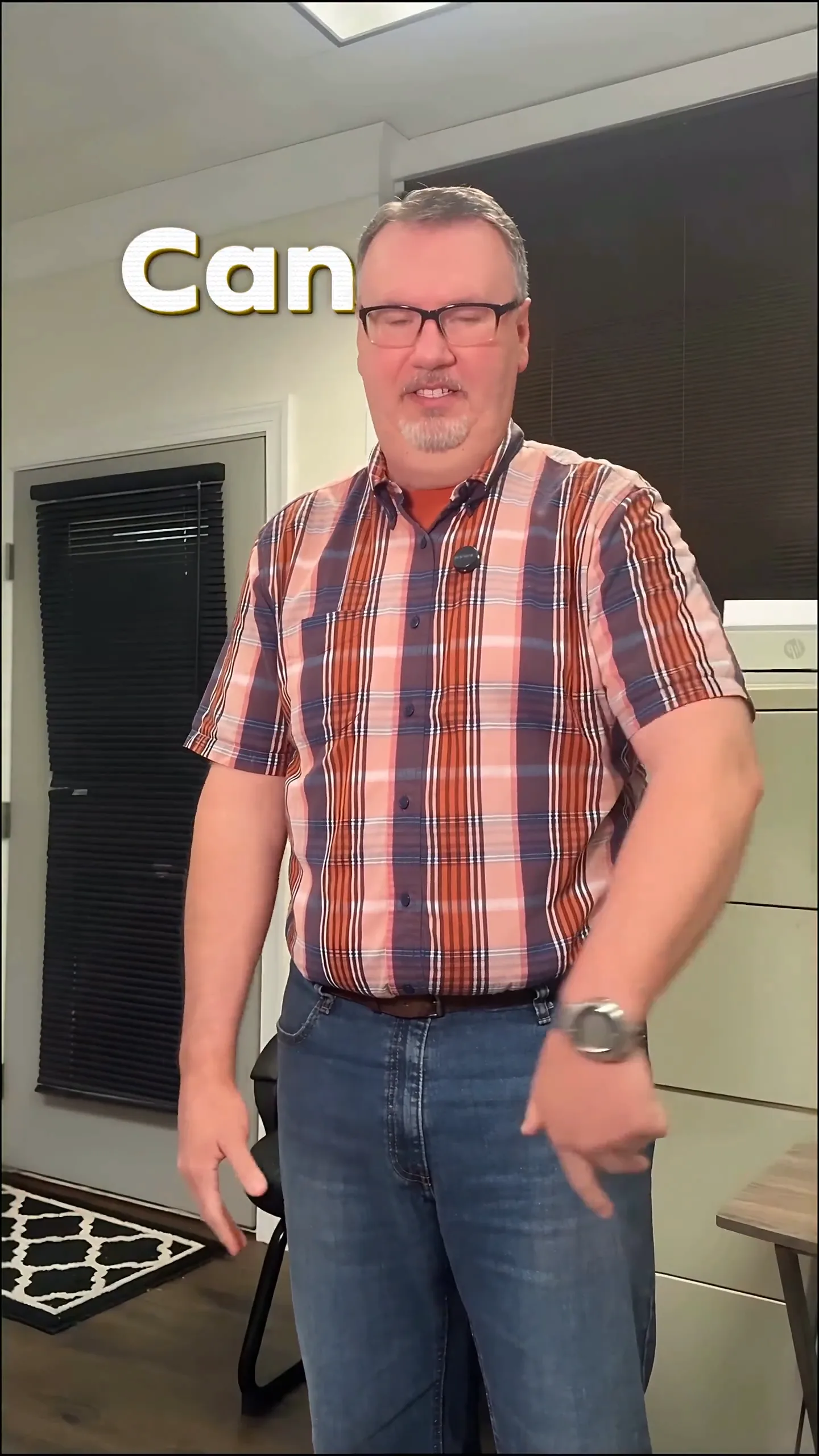
This video showcases captions rendered behind the subject, perfectly synced with the speech. View how the text flows seamlessly, enhancing the overall aesthetics of your content.
Style your captions
Describe the look, then drop in your video on the next step.
Why Use Animated Captions Over Plain Text?
Animated captions with depth, like those produced using the Composite mode, provide a richer viewing experience compared to traditional static captions. Here’s a quick comparison:
- Plain Captions: Text sits on top, potentially obscuring the subject, which can detract from the video’s storytelling.
- Animated Captions Behind Subject: The text enhances the scene, adds a layer of depth, and keeps all elements visually engaging.
Tips for Best Results
- Choose High-Contrast Colors: Ensure that your captions are easily readable against your video background. This helps maintain viewer engagement.
- Use Sound Effects: Adding sound effects synced with captions can elevate the production quality. Sleepy Motion automatically incorporates sound effects, making your video feel more professional.
- Experiment with Presets: Take advantage of various caption presets available in Sleepy Motion, like the Viral Insta or Cold Comic styles, to find the look that fits your video best.
Getting Started Today
Ready to create captivating videos with a text behind subject effect? You can add captions to your video for free. Start with your 15-second clip, and experience the ease of enhancing your videos today!
FAQs
- How do I get the free text behind subject effect?
- What video lengths can I use?
- What file formats can I upload?
- Is there a watermark on the free plan?
- Can I customize my captions?
- What if I want to remove silences or pauses?
With these steps, you’re set to transform your videos with the text behind subject effect. It’s simple, effective, and free to try!
Make it yourself with Sleepy Motion
Describe the look, then drop in your video on the next step.