



How to Make Talking Videos More Engaging: Tips & Tools
Transform your talking videos into engaging content with animated captions, sound effects, and more—here's how!
Creating engaging talking videos can be a challenge, but the right tools and techniques can make a significant difference. Animated captions and sound effects not only enhance viewer retention but also add a professional touch to your content. In this post, I’ll cover practical ways to make your talking videos stand out, especially for short-form creators and video ads.
Why Are Talking Videos Often Boring?
Many talking videos fail to capture attention because they lack visual dynamism. A static shot with plain text doesn’t provide enough stimulation for the viewer. Additionally, audiences are often scrolling quickly through their feeds, so your video needs to grab their attention instantly. This is where animated captions and well-placed graphics come into play.
How Can Animated Captions Elevate Your Videos?
Animated captions can make your videos more engaging by adding visual interest while conveying your message. Unlike static captions, animated versions can draw viewers' eyes to what’s being said at the moment, enhancing understanding and retention.
Captions Modes: Classic vs. Composite
With Sleepy Motion, you have two captioning options:
- Classic Captions: These animated captions appear on top of your video, synced to the speech. They add flair without overwhelming the visual content. This is ideal for straightforward talking head videos.
Here's how it looks:
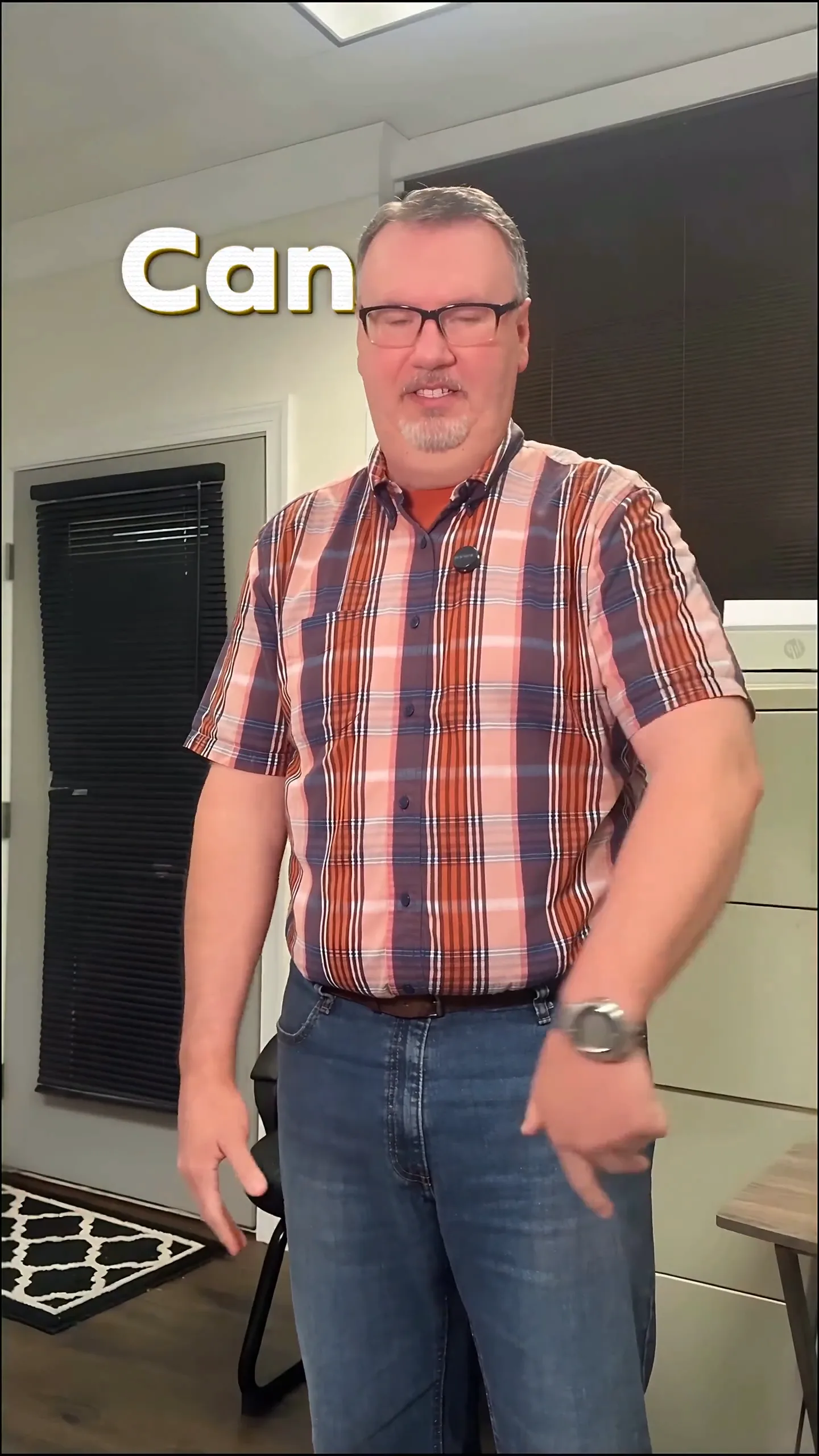
- Composite Captions: This is where things get exciting. Composite captions render behind the subject, allowing for a 3D effect that adds depth. The captions follow your subject's movement, ensuring they’re always visible without blocking important visuals. You don't have to lift a finger; just upload your video, and the AI does the rest, making this the simplest method for captivating content.
Check out this example of how composite captions enhance a video:
Practical Steps to Enhance Your Videos
To start making your talking videos engaging, follow these simple steps:
- Choose Your Captions: Decide between Classic or Composite captions based on the style that fits your content best. For short-form content like Reels, Composite captions often work best as they add depth while keeping the focus on the speaker.
- Upload Your Video: Simply upload your MP4 or MOV file (up to 150MB for paid plans) into Sleepy Motion. If you’re on the Free plan, you can upload videos up to 15 seconds long.
- Select Caption Options: Choose whether you want Dynamic (AI-placed) or Fixed captions (where you can customize placement). This flexibility allows you to experiment with caption styles until you find what resonates with your audience.
- Add Sound Effects: Enhance your talking video further by using the automatic sound effects feature. Adding relevant sounds that react to your captions can elevate the viewer experience. You won’t need to find or place them manually; the AI does this seamlessly.
- Preview and Adjust: Review your video before finalizing. Check how the captions are synced and ensure the sound effects complement the visuals.
Example Use Cases
- Short-form Creators: For creators on platforms like TikTok or Instagram, engaging talking videos can lead to more shares and comments. A video with Composite captions can visually pop, drawing in viewers who may scroll past less dynamic content. For example, using the Viral Insta preset can help you create bold, eye-catching captions that emphasize key points in your speech.
- Video Ads: If you’re making a video ad, animated captions can effectively highlight your product’s features. Imagine an ad for a new gadget where each important feature is highlighted by animated composite captions that don’t obstruct the product being showcased. This not only informs the viewer but keeps their eyes glued to the screen.
Style your captions
Describe the look, then drop in your video on the next step.
Troubleshooting Common Issues
- Issue: Captions are blocking important visuals.
- Issue: Sound effects feel out of place.
The Difference: Plain Captions vs. Animated Captions
Plain captions merely sit on top of the video, offering little visual excitement. Animated captions, especially when using Composite mode, engage viewers by dynamically aligning with the speaker and emphasizing key moments. This can keep your audience’s attention longer, essential for both entertainment and marketing.
Conclusion
Ready to make your talking videos more engaging? Start with Sleepy Motion to add captivating animated captions and sound effects that enhance your content without the hassle of manual editing. Don’t forget, you can try out the Free plan to generate AI captions on videos up to 15 seconds long today!
For more advanced editing, including removing silences and auto-editing your takes, check out our other tools to streamline your workflow.
FAQs
Q1: How to make talking videos more engaging?A1: Use animated captions and sound effects to maintain viewer interest. Tools like Sleepy Motion simplify this process with features like Composite captions.
Q2: Can I add captions to a video for free?A2: Yes, you can use Sleepy Motion's Free plan to generate AI captions for videos up to 15 seconds long, with a watermark.
Q3: How do I edit a talking head video quickly?A3: Upload your video to Sleepy Motion, choose your caption style, and let the AI handle the timing and placement of your captions automatically.
Q4: What type of captions should I use for social media?A4: Composite captions work well for social media as they provide depth and keep the focus on the speaker, enhancing engagement.
Q5: Can I customize the look of my captions?A5: Yes, Sleepy Motion offers caption presets that you can apply for a unified style, along with options for animations and sound effects.
Q6: How to edit a podcast clip for reels?A6: Use Sleepy Motion to upload your podcast clip, add animated captions, and incorporate sound effects for a dynamic reel that captures attention.
Make it yourself with Sleepy Motion
Describe the look, then drop in your video on the next step.