

How to Automatically Jump Cut Your Videos Easily
Learn how to make auto jump cuts in your videos with ease using Sleepy Motion's AI-powered features.
Jump cuts are a crucial editing technique for creating engaging short-form content. They help eliminate pauses, filler words, and unnecessary content, keeping your audience glued to the screen. The good news? You can automate this process to save time and enhance your video quality significantly.
What Are Auto Jump Cuts?
Auto jump cuts are a method of editing where the software removes unwanted sections of your video automatically. This includes silences, filler phrases like 'um' and 'uh', and any repeated content. Instead of manually trimming each segment, you let an AI tool do the heavy lifting for you.
How to Use Auto Jump Cuts with Sleepy Motion
Here’s how to get started with auto jump cuts using Sleepy Motion:
- Upload Your Raw Video: Start by uploading your video file in MP4 or MOV format. You can use footage of up to 2 minutes for paid plans, while a 15-second clip is allowed on the Free plan.
- Enable AI Edit: Once your video is uploaded, simply turn on the AI edit feature. This only requires a single click, and you don’t need to adjust any other settings. The AI will analyze your video, look for silence, filler words, and unnecessary repetitions, and make the cuts accordingly.
- Review the Edited Video: After the AI processes your footage, you'll receive a polished version that’s concise and engaging. The edits are timed perfectly with captions that sync with the speech, ensuring a smooth viewing experience.
For example, if you start with a raw 2-minute recording filled with pauses and repetitions, the AI edit could condense it down to just 15 sharp seconds, maintaining your key messages while removing everything that slows the pace.
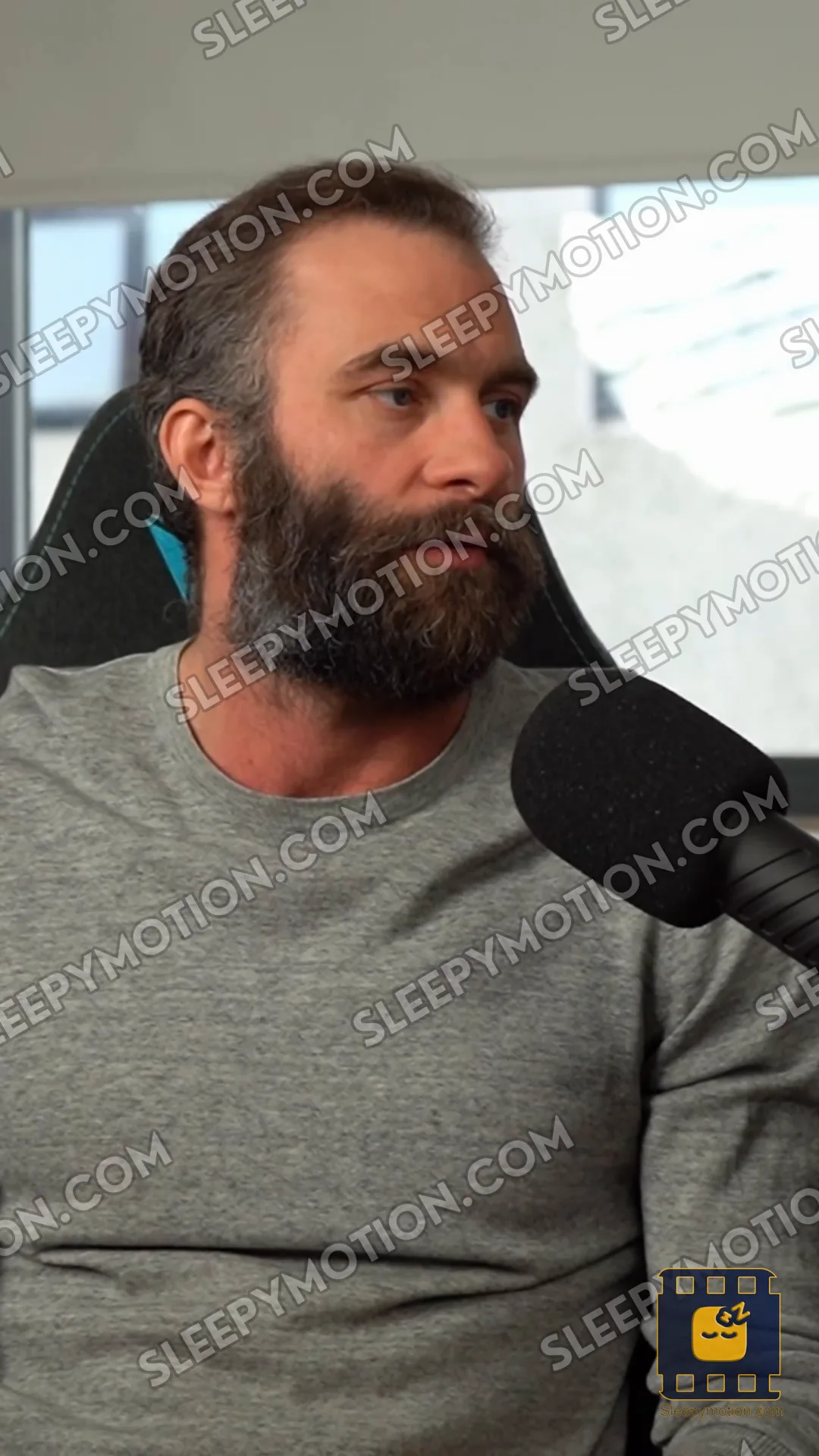 Before · 0:41
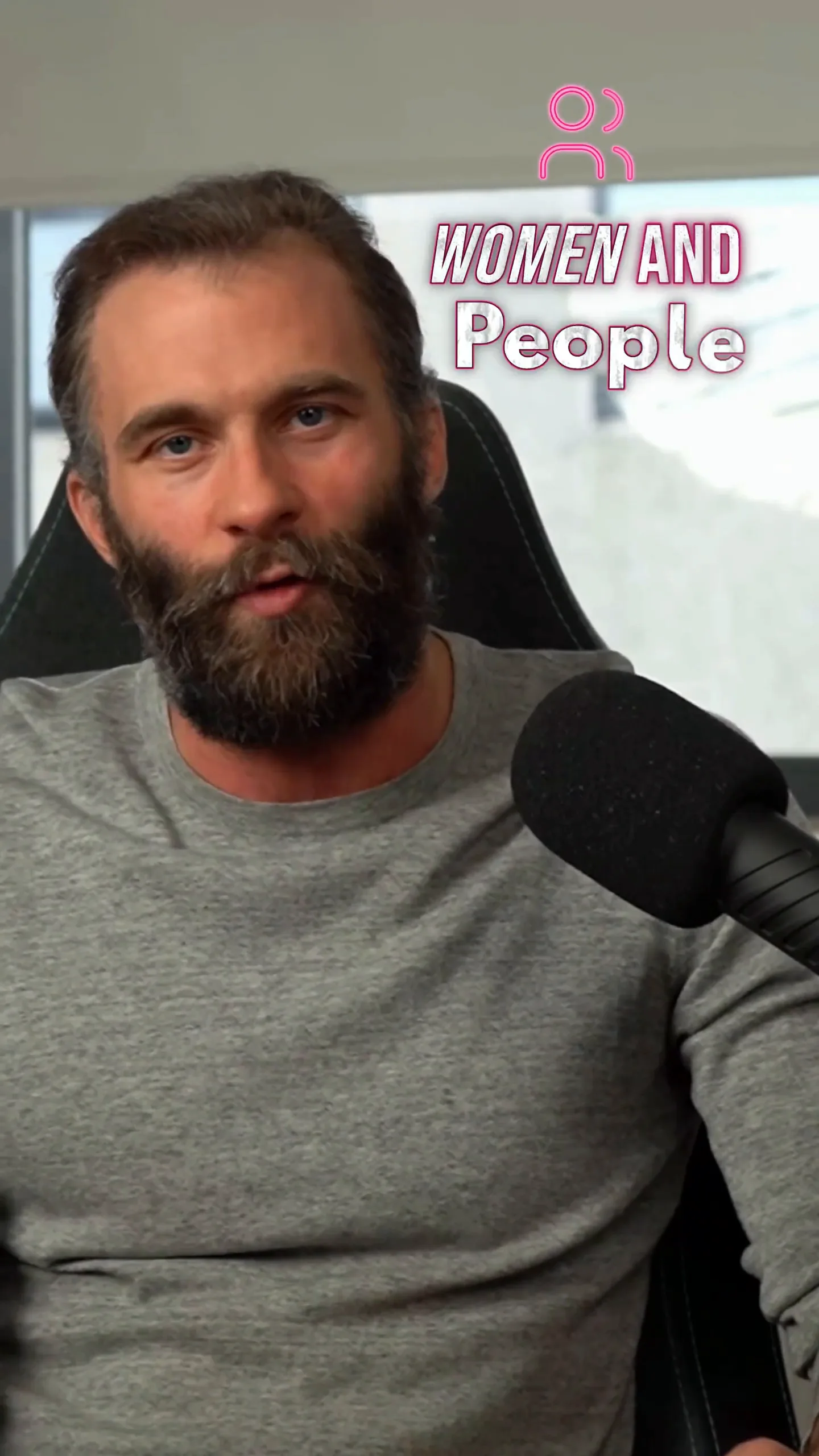 After · 0:15
Using Auto Jump Cuts for Short-Form Creators
If you're a creator on platforms like TikTok or Instagram Reels, auto jump cuts are essential for grabbing attention quickly. Fast-paced content is key to keeping viewers engaged, and automated edits help you achieve that effortlessly.
Imagine you’re discussing a new product. You may start rambling or make repeated points. Instead of spending hours editing, upload your entire take, activate the AI edit, and let the tool create a snappy, effective video that highlights your main points without the filler. Your end result? An engaging, professional-looking video ready to post.
Style your captions
Describe the look, then drop in your video on the next step.
Making Video Ads with Auto Jump Cuts
Auto jump cuts can also enhance your video ads. In advertising, every second counts. By creating a video ad that is precise and to the point, you minimize viewer drop-off rates. Upload your ad footage, enable AI edit, and you’ll get a seamless final product that showcases your offerings without unnecessary fluff.
Example Workflow for Video Ads:
- Upload: Your video ad footage (up to 2 minutes for paid plans).
- Turn on AI Edit: Let the AI analyze the content.
- Output: Review the edited ad, which is now concise, engaging, and ready to grab your audience's attention.
With Sleepy Motion, you don’t just get auto jump cuts; you also get captions synchronized with your video, providing a complete package that elevates your content.
Why Choose Sleepy Motion for Auto Jump Cuts?
Unlike many editing tools that require manual cuts or only allow you to trim certain sections, Sleepy Motion automates the editing process from start to finish. Simply upload your video, and let the AI handle the rest. This saves you time, reduces editing fatigue, and results in a professional-quality video that retains all your vital points.
Key Benefits:
- Full Automation: No manual editing required.
- Timed Captions: Captions automatically sync with the edited footage.
- User-Friendly: Simple upload and enable process.
Troubleshooting Auto Jump Cuts
If you’re not satisfied with the results:
- Check Video Quality: Ensure your upload is clear and free of artifacts, as poor audio quality can affect the AI's performance.
- Adjust Length: If your video is close to the plan limit, consider shortening it to fit the requirements.
Conclusion
Auto jump cuts are a fantastic way to streamline your editing process, making your videos more engaging and professional. To get started for free, upload a video up to 15 seconds long to try out the AI edit feature. Experience how easy it is to remove silences and other filler from your videos, leaving only the gold that keeps viewers interested!
For a powerful tool that helps you create engaging content efficiently, try Sleepy Motion today. Remember, the first step is just an upload away!
FAQs
Q: What is an auto jump cut?A: An auto jump cut is an editing method that removes unwanted sections of your video automatically, like pauses and filler words.
Q: How do I enable auto jump cuts?A: Simply upload your video to Sleepy Motion and turn on the AI edit feature. The AI will handle the rest.
Q: Can I try it for free?A: Yes! You can use Sleepy Motion for free, allowing you to upload videos up to 15 seconds long with auto jump cuts included.
Q: What formats can I upload?A: You can upload videos in MP4 or MOV formats.
Q: How long can my videos be?A: Free users can upload videos up to 15 seconds, while paid plans allow for longer videos.
Q: Will my captions sync with the auto jump cuts?A: Yes, captions are automatically synced to the speech in the edited video.
Make it yourself with Sleepy Motion
Describe the look, then drop in your video on the next step.