
How to Put Text Behind a Person in CapCut Quickly
Learn how to add text behind a person in your videos using Sleepy Motion's automatic tool. Perfect for ads and short-form videos!
Are you looking to add text behind a person in CapCut? This effect can make your videos pop and keep viewers engaged without cluttering the screen. You can achieve this effortlessly with Sleepy Motion's Composite mode, which automatically places captions behind your subjects. Here’s how to do it in just a few steps.
What is the Text Behind Person Effect?
The text behind person effect allows your captions to appear behind your subject, creating a dynamic and visually appealing look. Instead of traditional overlays that cover the entire frame, this technique enhances the focus on your subject while keeping the words visible. This is especially useful for short-form creators and video ads where grabbing attention is crucial.
Style your captions
Describe the look, then drop in your video on the next step.
Why Choose Sleepy Motion for This Effect?
Unlike other tools that require you to manually select clips and adjust text, Sleepy Motion automates the entire process. You just upload your video, and our engine does the rest—masking the subject, placing the captions dynamically, and syncing everything to the audio. It’s like having a professional editor at your fingertips.
Practical Steps to Add Text Behind Your Subject
- Create a Free Account: Start by signing up at Sleepy Motion. The free plan allows you to create videos up to 15 seconds long, perfect for testing the waters.
- Upload Your Video: Choose your MP4 or MOV file (up to 150MB on paid plans, 35MB on Free). Make sure it's a vertical or horizontal video for optimal results.
- Select the Composite Mode: This mode is essential for achieving the text behind the subject effect. It utilizes automatic subject segmentation to ensure the words are placed correctly.
- Customize Your Captions: You can pick from various presets that set the style of your captions instantly. For example, the Viral Insta preset gives your captions a bold, punchy look, ideal for social media.
- Hit Render: After uploading, you don’t have to do anything else. The captions are placed, timed, and rendered automatically.
Comparing Caption Types
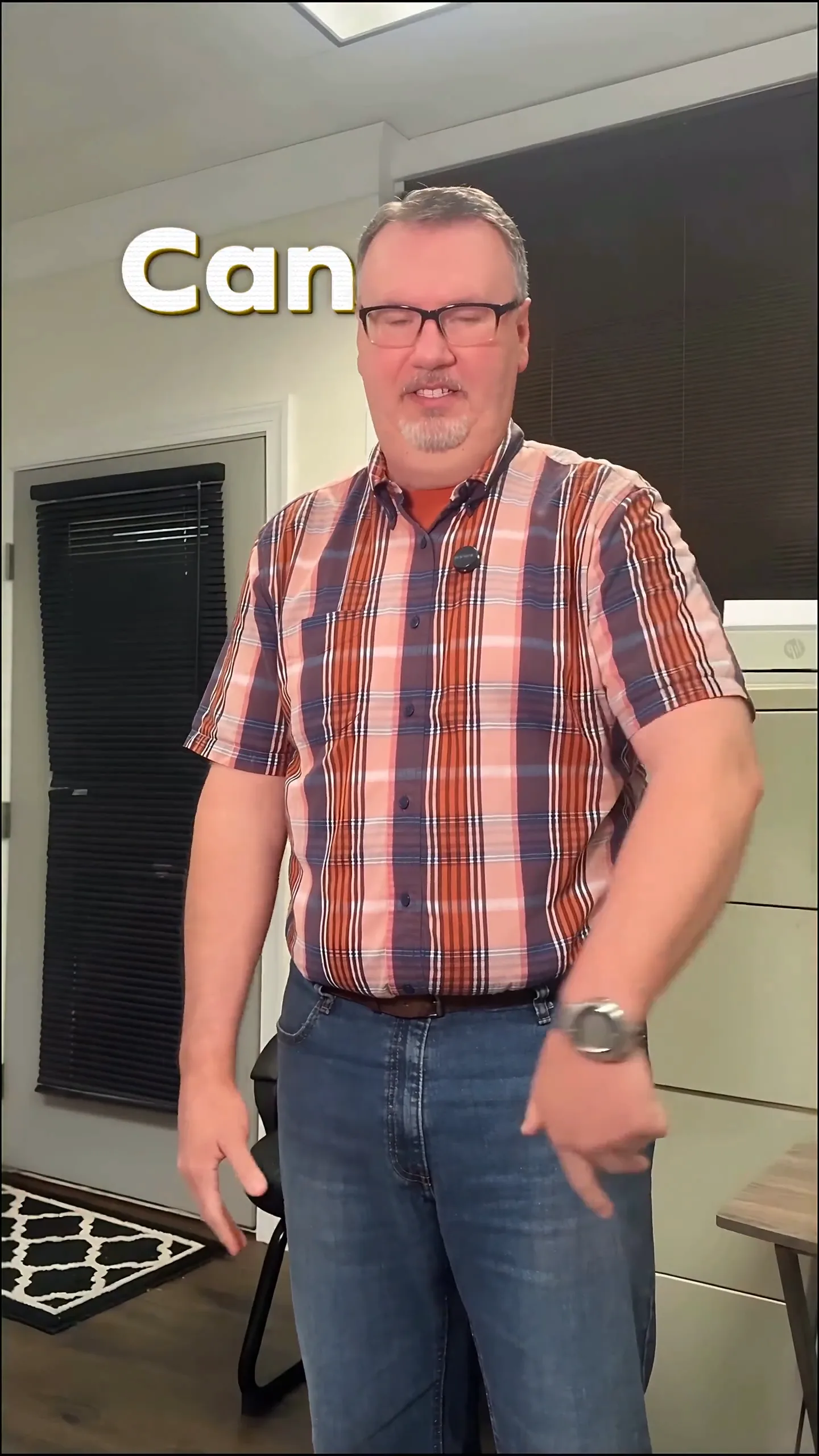
Using plain captions places text on top of the video, which can sometimes obscure the subject. In contrast, our animated captions in Composite mode ensure that the text flows smoothly behind the person. This not only looks better but also maintains viewer focus on the main content.
Real Example of the Composite Effect
To truly appreciate the difference, check out our example of composite captions in action:
Troubleshooting Common Issues
- Text is Not Visible: If your captions aren’t showing, make sure your video isn't too long for your plan. The Free plan supports videos up to 15 seconds.
- Video Upload Fails: Ensure your file is in MP4 or MOV format and under the size limit.
- Sync Issues: If the text doesn't sync well with your audio, check the audio quality of your uploaded file. Clear audio leads to better caption timing.
Final Thoughts
Adding text behind your subject is a great way to elevate the professionalism of your videos. With Sleepy Motion, you can achieve this effect effortlessly from just one upload. Curious about how easy it really is? Try our free plan today and see the difference yourself. Learn how to put text behind your subject and transform your videos.
Example Prompt
bold captions behind me that pop on every word, sound effects on each cut...
Frequently Asked Questions
What is the text behind person effect?
It's a design where captions appear behind the subject, enhancing focus and visual appeal.
How do I create this effect in CapCut?
Use Sleepy Motion's Composite mode to automatically place captions behind your subjects.
Can I use this for short social media videos?
Yes, especially effective for short videos on platforms like Instagram and TikTok.
Is there a free option for adding captions?
Yes, you can try Sleepy Motion for free with videos up to 15 seconds long.
What formats does Sleepy Motion support for uploads?
You can upload MP4 or MOV files.
How do I get started with Sleepy Motion?
Sign up for a free account and upload your video to begin.
Make it yourself with Sleepy Motion
Describe the look, then drop in your video on the next step.