
How to Mask Subject into a Silhouette for Stunning Edits
Learn how to easily mask your subject into a silhouette using Sleepy Motion's tools for eye-catching music edits.
Masking a subject into a silhouette is a creative way to enhance your video edits, allowing you to focus on the action while filling the silhouette with engaging visuals. This technique is perfect for short-form creators looking to elevate their content, especially for platforms like TikTok and Instagram. With Sleepy Motion, you can transform your footage quickly, creating dynamic and captivating music-driven edits.
What Does Masking a Subject into a Silhouette Mean?
Masking a subject into a silhouette means that the person in your video becomes an outlined shape, while the inside of that shape can be filled with visuals, like colorful animations or audio reactive elements. This keeps the subject faceless, making it ideal for creators who want to maintain anonymity or simply put more emphasis on the music and effects.
How Can You Mask Your Subject into a Silhouette?
To execute this effect using Sleepy Motion, follow these straightforward steps:
- Upload your video: Start by uploading the clip you want to edit. This clip should ideally feature movement or dancing to make the most of the silhouette effect.
- Select your Mode: Choose the ‘Masked Medium’ or ‘Masked Heavy’ edit mode. The Medium mode will turn your subject into a silhouette filled with the audio visualizer, while the Heavy mode will provide a denser, beat-driven edit.
- Adjust the Masking: Sleepy Motion uses advanced subject masking technology, automatically creating a mask for your subject. You can choose whether you want your lyrics behind the silhouette or on top, depending on the visual impact you desire.
- Add Effects: Once your silhouette is created, you can apply beat-reactive effects. These effects will synchronize with the music, adding dynamic visual elements like flashes and movements that react to the bass. For instance, if your clip features a dancer, you can make their silhouette dance to the rhythm while the background pulses with vibrant colors.
- Export and Share: After finalizing your edit, export it and share it on your preferred platform. You’ll have a stunning visual piece ready to capture your audience’s attention.
Plan your edit
Describe the vibe, then add your song or clip on the next step.
Examples of Using This Technique
Imagine you’re a dance creator on TikTok. You upload a clip of you dancing and choose to mask yourself into a silhouette. Inside that silhouette, you fill it with a colorful audio visualizer that moves rhythmically with your dance. Now, your audience is focused on the music and the visuals, making your content stand out in crowded feeds.
Similarly, if you’re creating a fan edit for a music track, you can use footage of a band performing. Mask the lead singer into a silhouette, and fill that silhouette with animated lyrics that appear in sync with the music. This not only highlights the vocals but provides a visually engaging experience for the viewer.
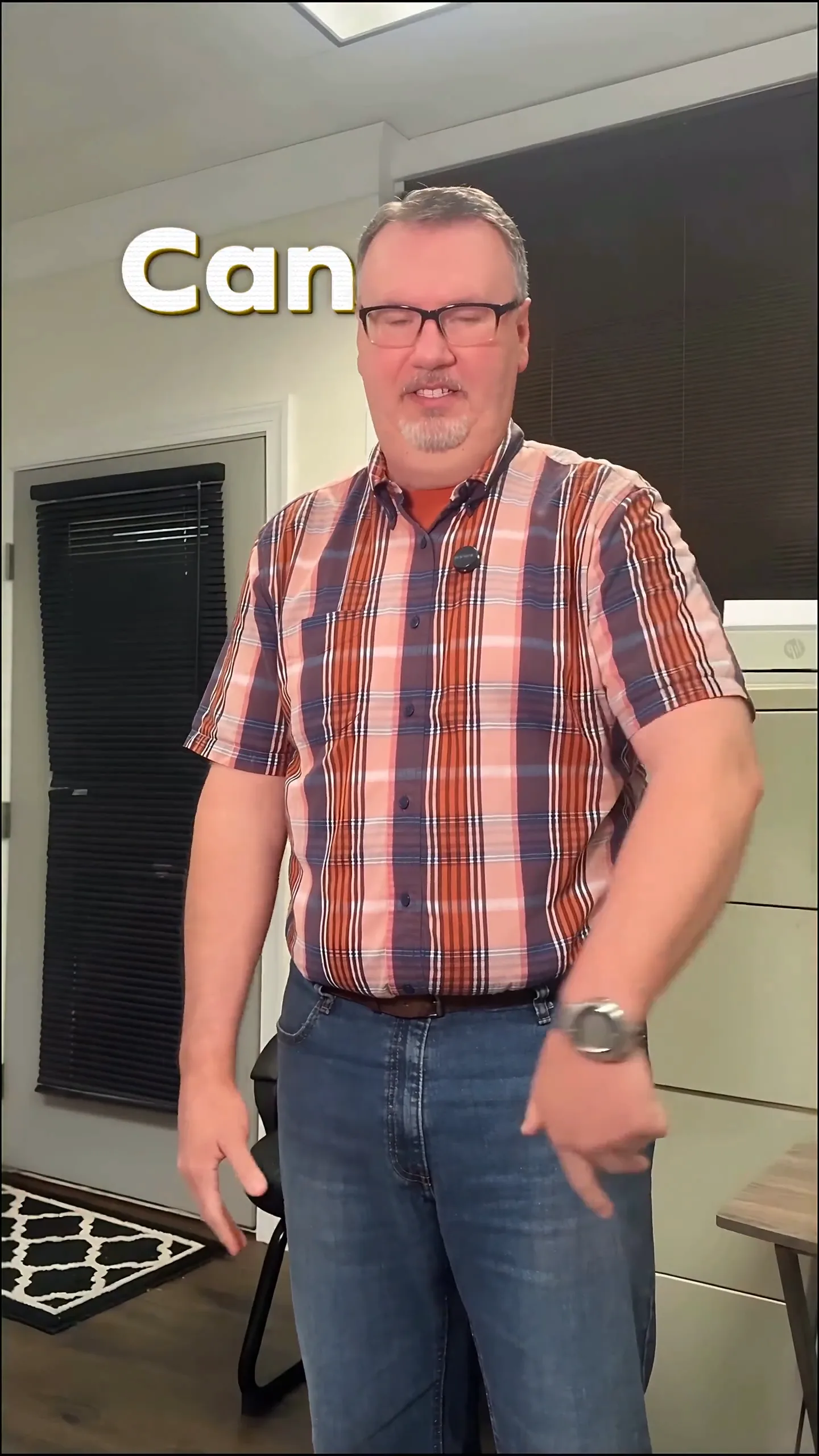
Here’s a visual example to give you an idea of how this looks in practice:
A Note on Music Rights
When using existing songs for your edits, be aware that music rights can vary. Use tracks that you own, have a license for, or explore royalty-free music to ensure you’re respecting copyright laws. Each platform has its own rules regarding music and monetization, so check those before sharing your work. This will help you avoid any potential issues while still allowing your creativity to shine.
Conclusion
Masking your subject into a silhouette is a captivating way to create engaging edits that resonate with viewers. By using Sleepy Motion's automatic masking and beat-reactive effects, you can transform ordinary footage into extraordinary music-driven visuals. Start today by uploading your video and experimenting with these features to take your content to the next level. If you’re ready to create, head over to the lyric video maker and start your journey now.
Example Prompt
"a vibrant energetic dance video where I become a glowing silhouette filled with shifting colors and effects..."
Frequently Asked Questions
How do I mask a subject into a silhouette?
Upload your video, select a masking mode, and let Sleepy Motion create a silhouette filled with visuals.
What are the best effects for silhouette edits?
Use beat-reactive effects to synchronize your visuals with the music, enhancing the overall impact.
Can I use my favorite songs for these edits?
Make sure to use music you own or have a license for, to respect copyright laws.
How can I create a lyric video with a silhouette?
Upload your video, mask the subject into a silhouette, and add lyrics that sync with the music.
What platforms are best for sharing silhouette edits?
Platforms like TikTok and Instagram are great for sharing these creative edits, appealing to wider audiences.
How do beat-reactive effects work?
Beat-reactive effects respond to the music, creating dynamic visuals that enhance the viewing experience.
Make it yourself with Sleepy Motion
Describe the vibe, then add your song or clip on the next step.